Friday, November 28, 2008

HACKING AND SECURITY TOOLS COLLECTION(individual links)

Buffer Overflows
Cryptography
Denial of Service
Enumeration
Evading IDS Firewall
Footprinting
Hackers Black Book
Hackers Black Pack
Hacking Wireless Networks
Legality
Linux Hacking
Miscellaneous

Penetration Testing Methodologies
Physical Security
Scanning
Session Hijacking
Sniffers
Social Engineering
SQL Injection
System Hacking
Trojans and Backdoors
Ultimate Hacking Security Pack 2007
Unix Hacking Tools
Vulnerabilities Scanners
Web Application Vulnerabilities
Web Based Password Cracking

Code:


Password :

BanglaBaba

40 BRILLIANT GMAIL TRICKS

1. If you haven't already created a Gmail account, you no longer need an invitation to do so. Just go to
and click Sign up for Google Mail

2. Gmail blocks most executable filetypes as a virus protection measure. If you absolutely have to send EXE or DLL files to a colleague, use something like DropSend. You can send up to five files per month for free.

3. Attachments sent in formats that Google Documents can read can be opened direct in your browser. That list includes Word, Excel, PowerPoint, PDF, and RTF files.

4. When you attach image files in JPEG, GIF or PNG formats, users will get the option to download the attached file or view in their browser. You can also download or playback MP3 files direct in Gmail.

5. To retrieve your email from accounts other than Gmail, go to Settings then the Accounts tab. Choose Add another mail account. This takes you through a two step process for configuring a POP3 mail account. You'll first be prompted for an email address. On the next page of the form, you'll be asked for the associated password and, crucially, the POP server address for this account. You should be able to find all this information from your email provider's documentation. Once the POP details are configured click Add Account and Gmail should try to fetch messages from your old account straight away.

6. Once you've configured Gmail to receive messages from another account - what do you do with your old inbox? Google Email Uploader has a solution for that. It enables you to transfer old emails stored in Outlook, Outlook Express or Mozilla Thunderbird to a Gmail account - even creating labels from folder names.

7. POP integration brings with it another perk; the ability to back up your old messages. Go to the Settings section, then choose Forwarding POP and IMAP. In the POP Download section select either Enable POP for all mail or Enable POP for all mail that arrives from now on. Select whether to keep or delete mail from the server when it's been downloaded then click the Configuration Instructions link to find out how to set up your particular mail client - whether it's Outlook Express, Windows Mail or Thunderbird.

8. There's a bonus to the account access tips we've already outlined. You can set up as many Gmail accounts as you like - creating different email addresses for different tasks - but receive all the mail at the same account. As we've described, any POP compatible email account can be added to a Gmail account - including other Gmail accounts. For example - you could set up different Gmail accounts for friends, family and work - but have all the messages sent to one inbox.

9. Of course, when you've got lots of email all coming into one place it's important to be able to organise it. Gmail doesn't use folders though - it uses Labels. You can apply these manually to a message by selecting a post in the main window, clicking the More Actions drop down menu and choosing New Label. A JavaScript prompt allows you to type in a label name which is immediately applied.

10. Apply colour coding to labels by clicking on the square next to a label name in the Labels sidebar box. Choose a colour from the pop-up swatch.

11. The More Actions menu also enables you to create Google Calendar events from emails... Select the mail in question then choose Create Event from the menu.

12. If Calendar options don't appear in Gmail, try going to Settings > General and choosing English (US) in the Google Mail display language menu.

13. Create rules that automatically apply labels to your messages as they arrive. For example, let's say that you know any messages from 
littlebob@yourclient.com are going to be work related. Go to Settings then Filters. Click Create a new filter. This opens a form that prompts you to enter search criteria that Gmail uses to apply rules to messages. Enter the email address littlebob@yourclient.comin the From: field, then click Next Step. On the next page you'll be asked to select an action. Choose Apply the Label, then select New Label from the drop down menu. When prompted, name it Work. You can then click Create Filter to finish. Now - any new mail that arrives from that address is automatically labelled Work, making it easy to find and distinguish from your other mail.

14. Use a similar trick to filter mail sent to you at different email accounts. For example, if you own your own domain name your hosting company will probably forward all mail received at that domain to an address of your choosing. A Gmail account is ideal for that. You can tell your friends that your email address is "mates@yourdomain" while reserving "work@yourdomain" for business. Use Gmail's filter system to create rules based on the To: field - and apply an appropriate label.

15. You can also use filters to apply labels to posts that are already in your inbox - receipts from all your online shopping for example. Go to Settings > Filters as before and choose Create a new filter. In the subject box type receipt OR order OR payment - then click Next Step. Tick the Apply the label box and create a new label called receipts. When you click Create Filter tick the box labelled Also apply filter to the xx conversations below.

16. Looking through your inbox for a mail that came with an attachment? Add has:attachment to your search query.

17. You can also search for mails that have specific filetypes as attachments, like this: has:attachment filename:doc.

18. By default, search only looks in your Inbox. To look for mail in other places, use the modifier in: For example, to search your Spam folder, add in:spam to your query.

19. To look for messages to or from people, use the to: or from: modifiers. For example, to find emails from someone called Jake, add from:jake to your search query.

20. You can exclude words from your search in the exact same way you exclude words from all Google searches, using the - symbol. For example to search for apples but not oranges, enter apples -oranges as your search query.

21. To view all messages with a specific label, enter the query label:labelname in the search box. For example, label:receipts returns all messages labelled receipts. You can specify multiple labels if you want, like this: label:receipts label:orders. This query will return messages that are labelled receipts and messages labelled orders.

22. One of our favourite Gmail features is the ability to configure your account so you can appear to be sending mail from any email address you own. You can configure this in Settings > Accounts in the Send Mail As section. Click Add another email address. Enter the address you want to use in the text box that appears. This will send a verification message to the inbox for that address so that you can confirm you're the real owner.

23. With multiple accounts associated with your Gmail address, you can choose which address to send from on a case by case basis - using the drop down menu next to the From: field in the Compose Mail window.

24. Gmail even has a Smart Reply feature, so it automatically knows which address to use in the From: field. This is ideal for consolidating the multiple email accounts that long term net users tend to pick up over the years.

25. Want to open mail links in Google Mail with Internet Explorer? Download and install Gmail Notifier. During the installation, check the box labelled Use for outgoing mail. The setting won't show up in Windows Internet Options dialogue, but Google Mail will now be configured as your default email service.

26. In Firefox 3 it's even easier. Launch the browser and go to Tools > Options. Click Applications and find the default configuration for mailto: links. Use the drop down menu to select Use Google Mail. Upgrade Firefox if the option doesn't appear.

27. Install Google Talk and go to Settings, then choose Open Gmail when I click on email links. That will set your registry so that Gmail is launched in your default browser whenever you click on a mailto: link in ANY web browser.

28. If you miss being alerted every time a new mail arrives, Gmail Assistant will cure what ails you. This Java based application connects to multiple Gmail accounts by IMAP and lets you know when new mail arrives in any of your inboxes. You can even access headers and choose which messages to read.

29. If you're still juggling multiple email and instant messaging accounts, there's Digsby. Still in beta and free, this desktop client connects to all the main mail services, several instant messaging clients and the most high-profile social networks, keeping you updated with any changes.

30. Use Gmail's Keyboard Shortcuts to speed up your workflow. Hit c to compose a new message, / to place the cursor in the search box or ! to report spam. You can navigate up and down the message list with j and k, hitting x to select a conversation. A full list of shortcuts can be found at


31. Firefox add-on Gmail Macros takes shortcuts a step further. You'll need to install Greasemonkey first then install the script Modified Gmail Macros v. 2.0. This adds further shortcuts to the default configuration - including key combinations for advanced editing.

32. Gspace at turns any Gmail account into 3GB or more of free online storage.

33. Want to speed up Gmail on slow connections or computers? Scroll to the bottom of the page and choose Basic HTML - then click Set basic HTML as default view. Gmail will now load in half the time.

34. For an even faster Gmail experience, use the mobile version.

35. Want to track where that spam list got your address from? Use this little known Gmail trick. Insert a + symbol in your email address and Gmail will ignore everything between the + and @ symbols. For example - if your Gmail address is 
yourname@Gmail.com you could tell Amazon that it's yourname+amazon@Gmail.com. The mail will still be routed to you...

36. You can still use filters to capture mails sent to addresses containing the + symbol, enabling you to give different addresses to each of the online services you use, then filter them accordingly. For example, add a receipt label to all mail from PayPal.

37. Gmail ignores periods in email addresses too. So, if you signed up as 
bob.spod@Gmail.com - you can send mail to bobspod@Gmail.com or even b.o.b.s.p.o.d.g.o.d@Gmail.com and it will still go to the same address.

38. It doesn't matter whether mail is sent to you @Gmail.com or @googlemail.com - they both route to the same domain.

39. Send mail to other Gmail users without having to type @Gmail.com or @googlemail.com at all. Just type their username in the To: field.

40. Want to try out new and experimental Gmail features? Go to Settings > Labs and select from the list.


TURNING GOOGLE INTO MP3 DOWNLOADER

Yes, that's right. You can take everyone's favorite all-purpose search engine and turn it into a web-crawling, MP3 ripping demon for you. The procedure itself isn't as hard as you would think either.

First a little bit of a primer on Google. The Search Engine itself has a bunch of extra bells and whistles beyond "AND", "OR", and "NOT" in defining your search queries. We're not going to go through all of them now , but suffice to say that if you spend enough time using Google, there are other search strings you can use to further narrow down your searches. (Check Advanced Google Searching for more Information.)


Copy / Paste the code below into your Google search box:

-inurl:(htm|html|php) intitle:"index of" +"last modified" +"parent directory" +description +size +(wma|mp3) ""

Where  is either the name of the band you're searching for music for OR the name of the song you're looking for.

That's the hack in a nutshell, but if you're interested to see how it works, keep reading. Let's take a few moments to dismantle it and see what is happening in the search query.


-inurl:(htm|html|php) intitle:"index of"+"last modified" +"parent directory"

The first flag, -inurl restricts the Google queries without htm, html, and php pages, and has "index of" within the title. "Index Of" is a common flag that distinguishes website repositories, folder views of groupings of files on the internet. In a nutshell the first part of the query narrows down Google search results to pages you wouldn't ordinarily see, but nonetheless are logged and tracked by Google as it parses the net for new content.

+description +size +(wma|mp3) ""

In particular, this search will narrow down these repositores to include only sites with wma and mp3 files related to the BANDNAME or SONG you are searching for.

CALCULATING PASSWRD STRENGTH

One of security steps (among many) you can do for yourself on the internet, is frequent password rotation and strong password creation. 

How should my password look like, what characters, signs?
What length is sufficient?
How often should one change his password?

These are common questions among non-technical users. The answer might give you "Brute force calculator" from Hackosis.com.

What it basically do is answering all above questions!

You just have to enter required parameters in their form and you get information in format
One of security steps (among many) you can do for yourself on the internet, is frequent password rotation and strong password creation. 

How should my password look like, what characters, signs?
What length is sufficient?
How often should one change his password?

These are common questions among non-technical users. The answer might give you "Brute force calculator" from Hackosis.com.

What it basically do is answering all above questions!

You just have to enter required parameters in their form and you get information in format

Your password is X characters long and has X combinations.
It takes 
X hours or X days to crack your password on computer that tries 137,438,953,472 passwords per hour. This is based on a typical PC processor in 2008 and that the processor is under 10% load.


FINDING SERIAL NUMBER IN GOOGLE

let's pretend you need a serial number for windows xp pro.

in the search bar type in just like this - "Windows XP Professional" 94FBR

the key is the 94FBR code.. it was included with many MS Office registration codes so this will help you dramatically reduce the amount of 'fake' porn sites that trick you.

or if you want to find the serial for winzip 8.1 - "Winzip 8.1" 94FBR

just try it out, it's very quick and it works nicely

RUNNING MULTIPLE INSTANCES OF YAHOO MESSENGER

If you are using Yahoo! Messenger v8.0 or above, YahooMulti.reg will let you run multiple copies of Yahoo Messenger.
At the same time which will allow you to login multiple ID’s at the same time.

1) Open Registry Editor (regedit.exe)
Click Start > Run and then type 'regedit' press enter.

2) Then Look For-
HKEY_CURRENT_ USER\Software\yahoo\ pager\Test.

3) Then change this value of plural to like this-
“Plural”=dword: 00000001  

ZIP OF DEATH

This is a exploit of the compression algorithms to make a small zip that will extract into extream amounts their are more ways and better ones than this one but i will only show how to make a simple 1k = 1m ratio.

1) Make a.txt file

2) Open and type the null character (alt + 255)

3) Press ctrl + a then ctrl + v a couple times to make some null bytes

4) If u have a hexeditor make the hex 00 for about 50 kilobytes.

5) Now make several copies of a.txt and name accordinly

6) Open cmd.exe

7) Type copy /b *.txt b.txt

8) Now every copy is made into a super copy and repeat

9) Once you have a nice empty big text file like 1gb. Put it in a zip archive.
Because of the simple construction of the file, 1gb of null bytes.....!

The zip is only 1 mb in size and can really annoy freinds.
For added fun hex edit the zip and you will see a bunch of hex 5555

Just add some more and the file will expand amazingly

Make sure to not open this after

You can always create your zip of death from the command line in linux
dd if=/dev/zero bs=1000 count=1000000 | gzip > test.gz


HACK ORKUT AND YAHOO MAIL (100% WORKING)


for orkut yahoo...u just have to follow further steps...

step1:create your account on ne php supported site...say...

or


download this rar file..which consists of yahoo fake page and several useful files..

step3:extract it...u'll get 4 files......

step4:upload this all files on...ur webspace...(on ripway.com..or 110mb.com)

step5:copy confirm.htm file link location from ur site....n send it to the victim ....

as soon as he enters his detail on dat fake page...
u'll get his emailid and password in...login.txt file.......

dis hacking is only for education purpose don missuse it.........................

HOW TO TRACE AN IP TO THE LOCATION FROM WHERE IT BELONGS

Many of us are interested to know how to trace the location once we get the IP ADRESS of some person.Well there are certain websites which surely helps in this regard


NOTE: For anyone reading this blog u may also use the ip information gadget in this page.

HOW TO HIDE FILES IN JPEG IMAGE

Using a simple trick in Windows, you can actually hide a file inside of the JPG picture file!

You can actually hide any type of file inside of an image file, including txt, exe, mp3, avi, or whatever else. Not only that, you can actually store many files inside of single JPG file, not just one! This can come in very handy if you need to hide files and don’t want to bother with encryption and all that other technical stuff.

Hide File in Picture

In order to accomplish this task, you will need to have either WinZip or WinRAR installed on your computer. You can download either of these two off the Internet and use them without having to pay anything. Here are the steps for creating your hidden stash:

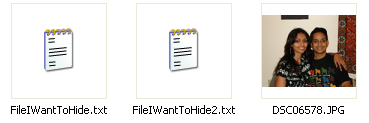
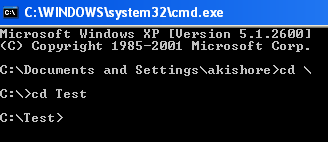
  • Create a folder on your hard drive, i.e. C:\Test and put in all of the files that you want to hide into that folder. Also, place the image that you will be using to hide the files in.


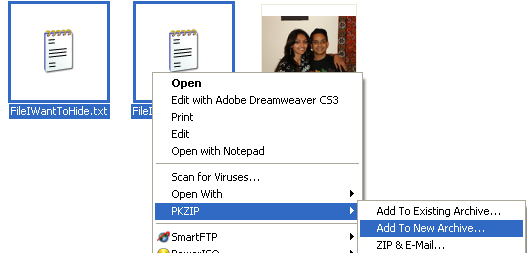
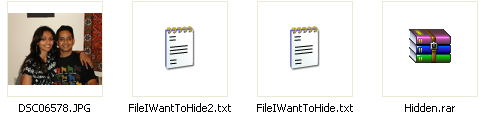
  • Now select all of the files that you want to hide, right-click on them, and choose the option to add them to a compressed ZIP or RAR file. Only select the files you want to hide, not the picture. Name it whatever you want, i,e. “Hidden.rar”.


  • Now you should have a folder  with files, a JPG image, and a compressed archive


  • Now here’s the fun part! Click on Start, and then click on Run. Type in “CMD” without the quotes and press Enter. You should now see the command prompt window open. Type in “CD \ to get to the root directory. Then type CD and the directory name that you created, i.e. “CD Test“.


  • Now type in the following line: “copy /b DSC06578.JPG + Hidden.rar DSC06578.jpg” and press Enter. Do not use the quotes. (we assume thet the jpeg image is named DSC06578.JPG )


Just make sure that you check the file extension on the compressed file, whether it is .ZIP or .RAR as you have to type out the entire file name with extension in the command. I have heard that some people say that they have had problems doing this with a .ZIP extension, so if that doesn’t work, make sure to compress to a .RAR file.

And that’s it! The picture file will have been updated with the compressed archive inside! You can actually check the file size of the picture and see that it has increased by the same amount as the size of the archive.

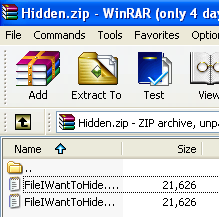
You can access your hidden file in two ways. Firstly, simply change the extension to .RAR and open the file using WinRAR. Secondly, you can just right-click on the JPG image and choose Open With and then scroll down to WinRAR. Either way, you’ll see your hidden files show up that you can then extract out.


That’s it! That is all it takes to hide files inside JPG picture files! It’s a great way simply because not many people know it’s possible and no one even thinks about a picture as having to the ability to “hide” files. Enjoy!

TRACING IP ADRESS OF SENDER THROUGH E-MAIL IN YAHOO

1. Log into your account and open the email (if you’re using Yahoo Mail Beta with the new preview interface, make sure you double-click on the email so that it opens in a new tab)

2. At the top right, you’ll see there is a drop-down option where Standard Headeris selected by default.

3. Click on it and choose Full Header.

yahoo header

Again, you’ll see the same information as before, just in a different window:

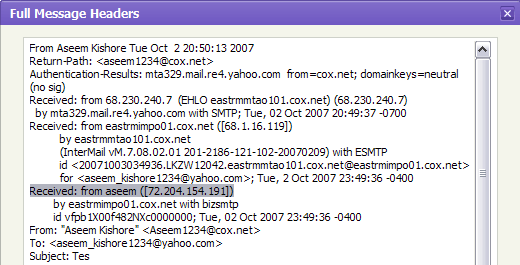
message headers

TRACING IP ADRESS OF SENDER THROUGH E-MAIL IN GMAIL

When you receive an email, you receive more than just the message. The email comes with headers that carry important information that can tell where the email was sent from and possibly who sent it. For that, you would need to find the IP address of the sender. The tutorial below can help you find the IP address of the sender. Note that this will not work if the sender uses anonymous proxy servers.

Finding IP address in Gmail

1 .Log into your Gmail account with your username and password.
2. Open the mail.
3. To display the email headers,
       Click on the inverted triangle beside Reply. Select Show Orginal.

4. Look for Received: from followed by the IP address between square brackets [ ].

Received: from [69.138.30.1] by web31804.mail.mud.yahoo.com 

If you find more than one Received: from patterns, select the last one.


Thursday, November 27, 2008

HOE TO CHECK THE STATUS OF A FRIEND IN YAHOO MESSENGER

sometimes we all have the curiosity to know if someone in the friend list in YM is offline or is really invisible(for whatever reasons).There are tricks like DOODLE TRICK but the best and easiest way is to check out the following site which specifies the status of the person u wanna knw.Try it out


try it!!!!!

REMOVING RECYCLE BIN FROM DEKTOP

Remove the Recycle Bin from the Desktop

If you don't use the Recycle Bin to store deleted files , you can get rid of its desktop icon all together. 

Run Regedit and go to:


HKEY_LOCAL_MACHINE/SOFTWARE/Microsoft/Windows/CurrentVersion/explorer/Desktop/NameSpace 


Click on the "Recycle Bin" string in the right hand pane. Hit Del, click OK.


RENAMING RECYCLE BIN

Renaming The Recycle Bin icon:


To change the name of the Recycle Bin desktop icon, click Start then goto Run, write Regedit and press Enter. It opens Registry Editor. Now in Registry Editor go to:

HKEY_CLASSES_ROOT/CLSID/{645FF040-5081-101B-9F08-00AA002F954E} 

and change the name "Recycle Bin" to whatever you want (don't type any quotes). 

SHUTDOWN AND RESTART SHORTCUTS

create a shutdown/restart shortcut on your desktop
Instead of going all the way, clicking Start>Turn Off Computer and
selecting Shutdown or Restart, create their icons on your desktop :

create a SHUTDOWN ICON like this :
Right click on an empty area on your desktop.
Select New>Shortcut.
In the first box of the Create Shortcut Wizard, type : Shutdown -s -t 00
Click Next.
Name the shortcut : Shutdown , and click Finish.
Then select an appropriate icon for it !

Similarly create a RESTART icon but follow the folowing step instead :

In the first box of the Create Shortcut Wizard, type : Shutdown -r -t 00
Click Next.
Name the shortcut : Restart , and click Finish.
select an appropriate icon for it now ! 

FOLDER LOCK WITHOUT SOFTWARES

Suppose you want to lock the folder games in d: which has the path D:\Games.In the same drive create a text file and type
ren games games.{21EC2020-3AEA-1069-A2DD-08002B30309D}
Now save this text file as loc.bat

create another text file and type in it
ren games.{21EC2020-3AEA-1069-A2DD-08002B30309D} games
Now save this text file as key.bat

Now you can see 2 batch files loc and key.Press loc and the folder games will change to control panel and you cannot view its contents.Press key and you will get back your original folder.

try it out!!!!!!!

STAR WAR MOVIE IN WIN XP

Microsoft has hidden a version of Star Wars done entirely with ASCII characters in the Windows XP operating system.But you must be connected to internet to view it.When online,go to start->run.Now type ' telnet towel.blinkenlights.nl ' without the single quotes.See it for yourself.

It works only in Windows Xp. 

CREATING A DIARY IN WINDOWS XP

1. Open a blank Notepad file
2. Write .LOG as the first line of the file, followed by a enter. Save the file as .LOG and close it.
3. Double-click the file to open it and notice that Notepad appends the current date and time to the end of the file and places the cursor on the line after. 
4. Type your notes and then save and close the file.

After that open the file and see the changes. 

SOME RUN COMMANDS U MUST KNOW

Add Hardware Wizard
hdwwiz.cpl

Add/Remove Programs
appwiz.cpl

Administrative Tools
control admintools

Automatic Updates
wuaucpl.cpl

Bluetooth Transfer Wizard
fsquirt

Calculator
calc

Certificate Manager
certmgr.msc

Character Map
charmap

Check Disk Utility
chkdsk

Clipboard Viewer
clipbrd

Command Prompt
cmd

Component Services
dcomcnfg

Computer Management
compmgmt.msc

Date and Time Properties
timedate.cpl

DDE Shares
ddeshare

Device Manager
devmgmt.msc

Direct X Control Panel (If Installed)*
directx.cpl

Direct X Troubleshooter
dxdiag

Disk Cleanup Utility
cleanmgr

Disk Defragment
dfrg.msc

Disk Management
diskmgmt.msc

Disk Partition Manager
diskpart

Display Properties
control desktop

Display Properties
desk.cpl

Display Properties (w/Appearance Tab Preselected)
control color

Dr. Watson System Troubleshooting Utility
drwtsn32

Driver Verifier Utility
verifier

Event Viewer
eventvwr.msc

File Signature Verification Tool
sigverif

Findfast
findfast.cpl

Folders Properties
control folders

Fonts
control fonts

Fonts Folder
fonts

Free Cell Card Game
freecell

Game Controllers
joy.cpl

Group Policy Editor (XP Prof)
gpedit.msc

Hearts Card Game
mshearts

Iexpress Wizard
iexpress

Indexing Service
ciadv.msc

Internet Properties
inetcpl.cpl


IP Configuration (Display Connection Configuration)
ipconfig /all

IP Configuration (Display DNS Cache Contents)
ipconfig /displaydns

IP Configuration (Delete DNS Cache Contents)
ipconfig /flushdns

IP Configuration (Release All Connections)
ipconfig /release

IP Configuration (Renew All Connections)
ipconfig /renew